




The GGPoker Smart HUD is an integrated analytics feature that helps players understand opponents’ tendencies and make better decisions at the table. Unlike conventional external HUDs, the GGPoker Smart HUD is built directly into the platform, giving players real-time access to valuable statistics without third-party software.
When playing online poker, a HUD is crucial for studying your opponents’ play tendencies. Instead of preventing external HUDs, GGPoker lets you use its dedicated “SmartHUD” at no cost.
In this article, we explain how to view SmartHUD data and hand histories, ideal stat values, PokerCraft, and more.
To see it in action, don’t skip our GGPoker review. Once you’re ready, register for GGPoker using the button below. Anyone who registers through our site can receive a $ 20 no-deposit bonus.
When signing up for KKPoker, enter the special bonus code “82237” or register via our site to receive luxury rewards!
[Site Exclusive! Limited Bonus]
- No-Deposit Bonus worth up to $24
- Exclusive luxury prize draws
- Rakeback bonuses
[Club Features]
- Over $1,000 in monthly prizes!
- Weekly Freerolls!
- One of the largest official communities with 8,000+ members!
- Exclusive community tournaments!
\Start Playing KKPoker for Free/
What is the Free-to-Use GGPoker “SmartHUD”
A HUD (Heads-Up Display) is a tool that collects poker statistics to study an opponent’s playstyle or improve your own.
Although external HUD tools aren’t permitted at GGPoker, the site offers “SmartHUD” for free. SmartHUD isn’t accessible from the home screen or My Page, but you can view it by tapping an opponent’s icon while playing.
How to View Data in GGPoker “SmartHUD”
SmartHUD is enabled by default during a game. To view the stats, simply click another player’s avatar. Here are some of the stats displayed.
How to View Other Players’ “SmartHUD” Data
During play, tapping an opponent’s icon shows a display like the following.
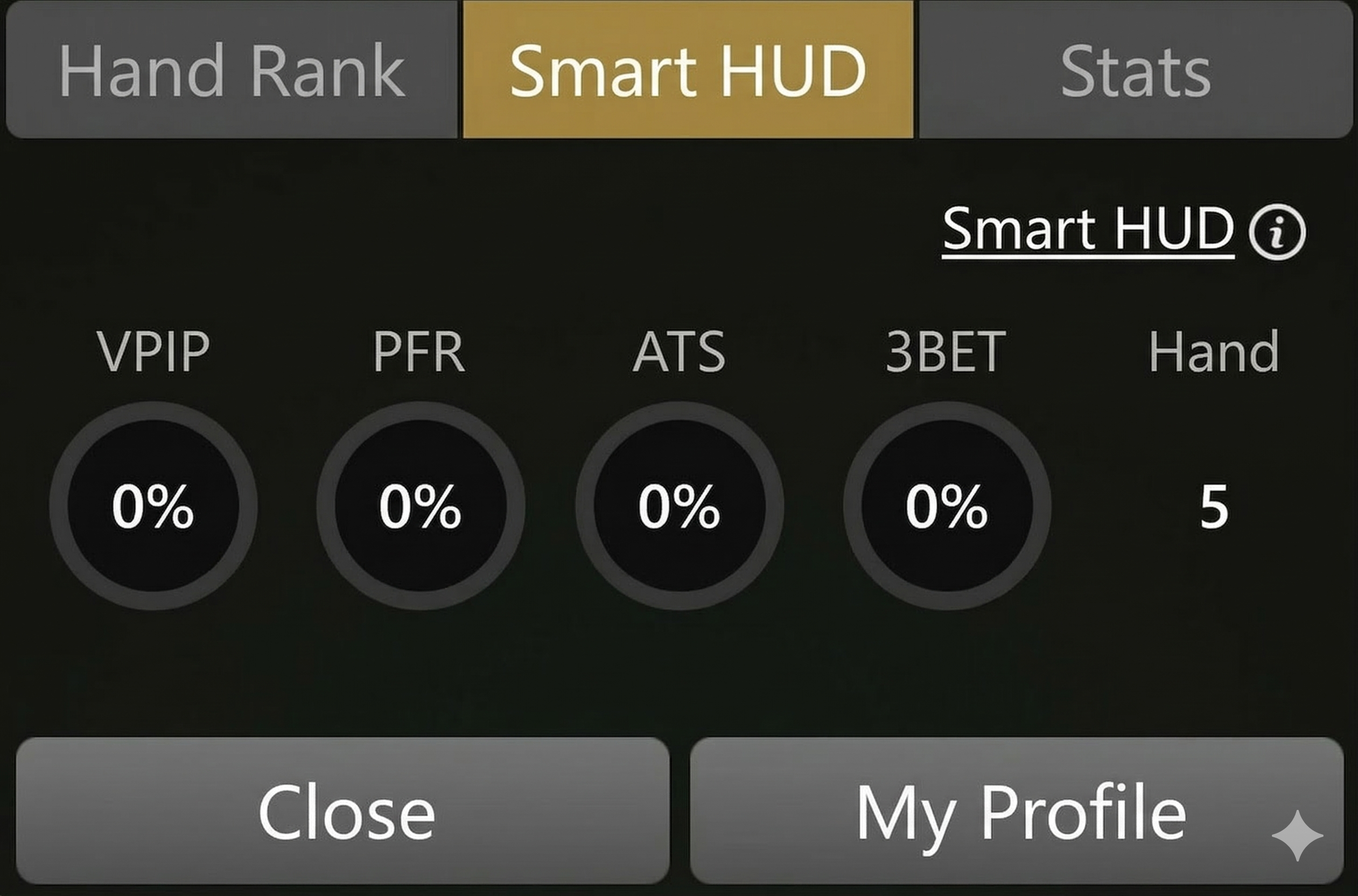
Here’s a list and explanation of the different terms that you’ll encounter on the Smart HUD:
Here are some of the stats displayed.
| Stat | Meaning | High Value Suggests |
| VPIP | How often a player voluntarily puts chips in the pot | Loose player, possibly a beginner |
| PFR | How often a player enters a pot with a pre-flop raise | Frequent bluffer or aggressor |
| ATS | How often a player attempts a steal | Actively starts confrontations |
| 3-Bet % | How often a player re-raises a pre-flop raise | Overly aggressive |
Taken together, these figures offer a general idea of an opponent’s playing style, though they don’t tell the whole story. Also consider position, stack sizes, game format, sample size, and the current hand.
How to View Your Own “SmartHUD” Data
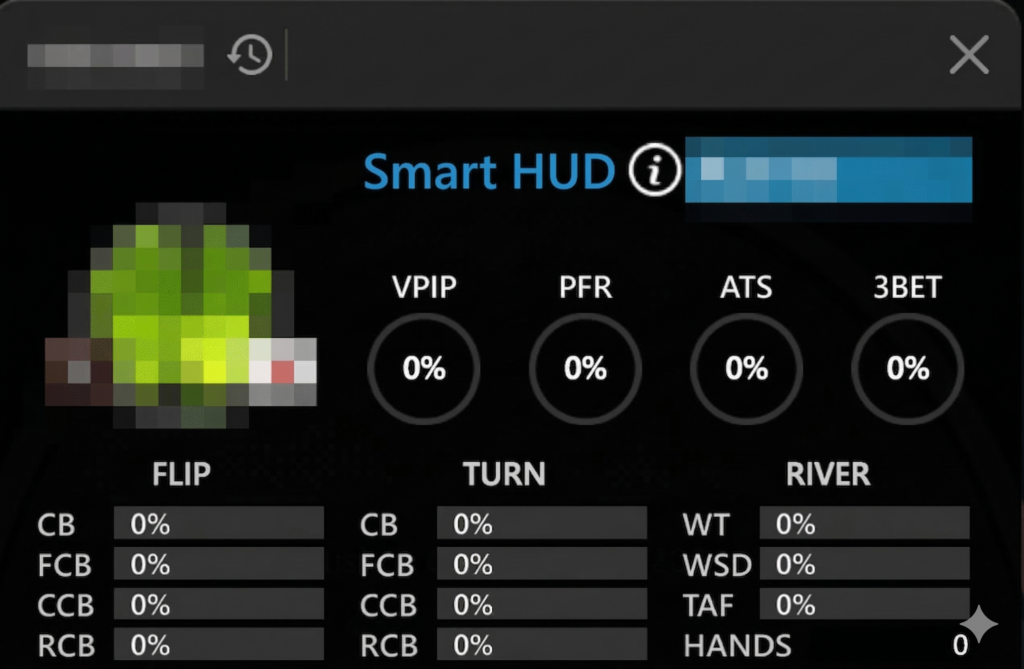
The player’s SmartHUD panel contains extra statistical data about his game, including actions after the flop. Here’s a list of Flop, Turn, and River values, and how you can read them in your own SmartHUD.
How to Read FLOP and TURN Values
FLOP describes the moment the first 3 of 5 community cards are dealt, and the TURN is the time when then 4th card of the 5 community cards has been dealt.
| Item | Content | Tendency of people with high values |
|---|---|---|
| CB (Continuation Bet) | Percentage of raising pre-flop and betting on the flop (Flop CB rate) | People who go for a confrontation |
| FCB (Fold to Continuation Bet) | Probability of folding when an opponent initiates a C-bet | Cautious people |
| CCB (Call to Continuation Bet) | Probability of calling when an opponent initiates a C-bet | Cautious people |
| RCB (Raise to Continuation Bet) | Probability of raising when an opponent initiates a C-bet | People with many bluffs |
How to Read RIVER Values
The river is the part of the game where the 5th of the 5 community cards is dealt. In short, the river happens just before the showdown.
| Item | Content | Tendency of people with high values |
|---|---|---|
| WT (WTSD = Went to Showdown) | Probability of proceeding to showdown (after the flop) | People who take the bet even in an unfavorable confrontation |
| WSD (WMSD = Won Money at Showdown) | Probability of winning when going to a showdown | People who play solidly |
| TAF (Total Aggression Frequency) | Numerical value of (number of bets + raises) / number of calls | People who play aggressively |
How to View Hand Histories on GGPoker
You can review your gameplay and analyze your decisions by checking your hand history. In this section, we’ll walk you through the steps to view your hand histories on GGPoker.
1: Tap the Speech Bubble at the Top Left of the Play Screen
While playing, tap the speech bubble icon in the top-left corner of the game screen to access the hand history feature

2: Select Hand History
A list of hand histories from the table will appear. Browse the list and tap the hand you want to review in detail.
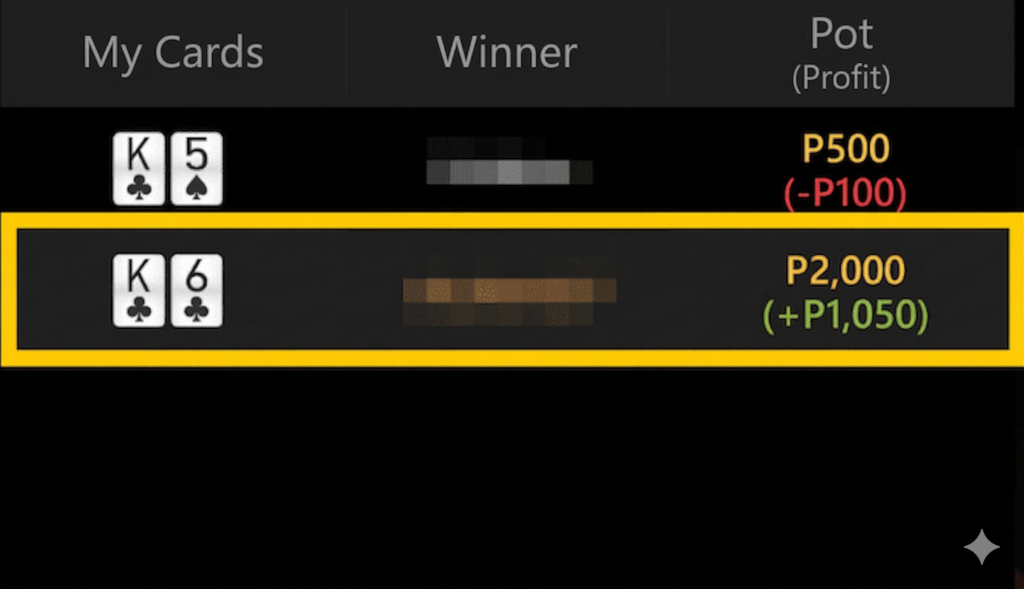
Once the list appears, tap the hand you want to view in detail.
3: Review the Action History and Other Details
Once you select a hand, the action history will appear, showing the sequence of actions taken during the hand, along with other relevant details. This allows you to review how the hand played out and analyze your decisions.
You can look back on whether your hand was the right one. Don’t only review your bad hands; review your good hands too, and analyze what made them good.
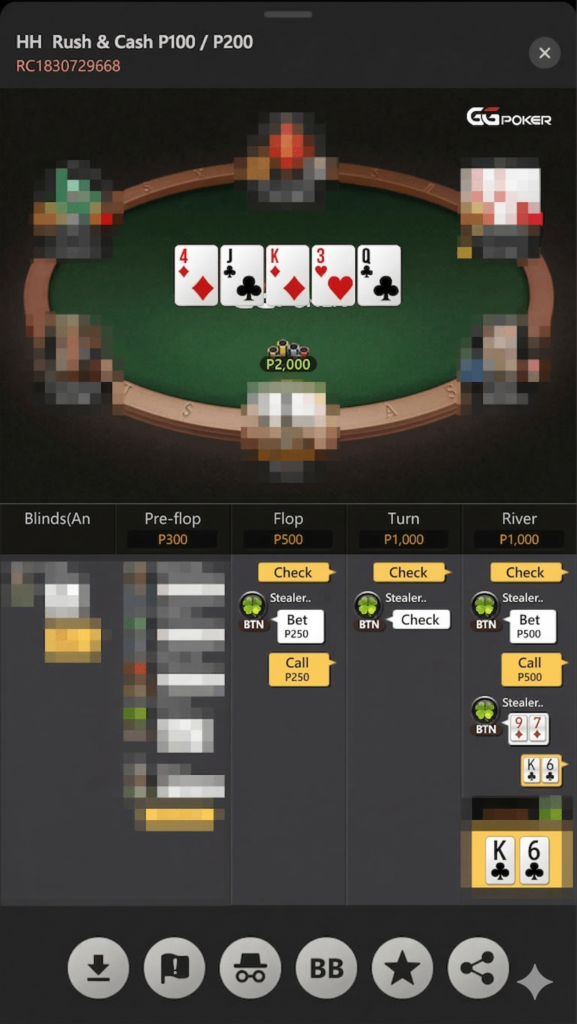
You can reflect on whether your hand was correct. Don’t just look back at bad hands; look back at good hands too, and analyze what worked across a variety of hand-range probabilities.
Ideal Values and Precautions for GGPoker “SmartHUD” (VPIP/PFR)
We will introduce the ideal values and how to read “SmartHUD” values, along with precautions for using them.
Ideal Values for VPIP and PFR
VPIP and PFR are two key statistical indicators in SmartHUD that characterize the game as a whole. The values of VPIP and PFR for Tight players are usually within the following range:
- VPIP: 20% – 25%
- PFR: 15% – 20%
A gap of 5% or more generally suggests a more passive player, while a PFR of 9% or lower indicates a tight player. These values work best as reference points in full-ring games, since small samples and table size can significantly affect ranges.
Precautions When Utilizing the Data
These HUD data are greatly influenced by the number of hands.
For players with a small number of hands, HUD data will show extreme values with large variance.
Therefore, be careful, as the player’s tendencies may not be clearly shown.
The Difference Between “SmartHUD” and PokerCraft
SmartHUD and PokerCraft are useful GGPoker tools, but they serve different purposes. SmartHUD helps you understand opponents’ playing tendencies and identify weaknesses during games. PokerCraft, available through your GGPoker My Page, focuses on analyzing your own performance. It provides detailed hand histories, timelines, game types, win/loss results, expected value (EV), hole-card statistics, positional performance, and results against opponents.
Using PokerCraft, you can review your results, identify weaknesses, and develop better strategies. Combining it with SmartHUD can help you make more informed decisions at the tables while improving your game.
Use both tools to track progress and strengthen your poker skills.
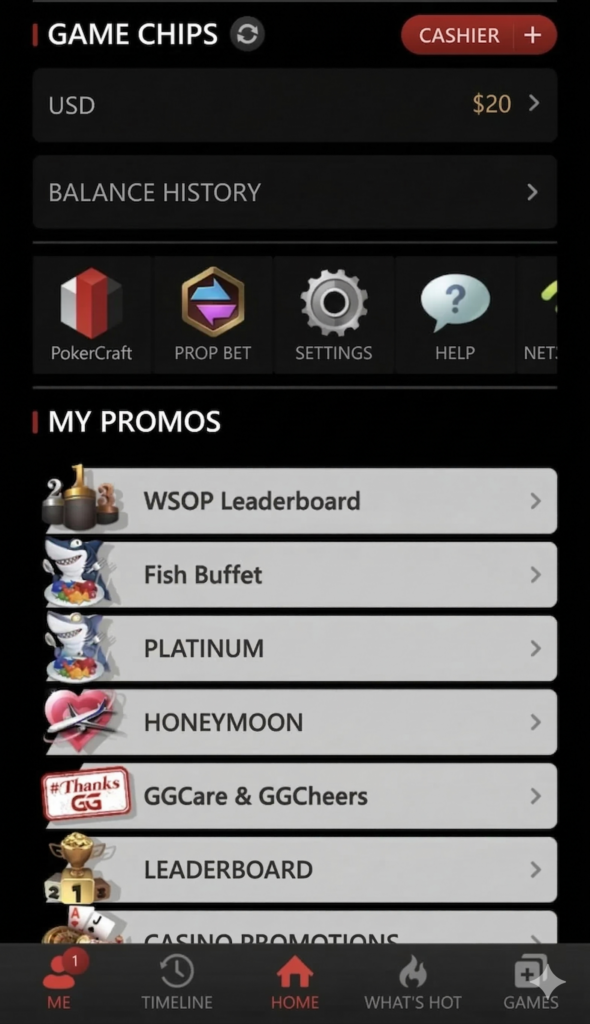
The information you can see in PokerCraft is mainly as follows.
- Overview
- Timeline of events and matches you participated in
- Game type (Playstyle, luck evaluation, position evaluation, etc.)
- Game history
- Win/loss, hand expected value (EV)
- Hole card matrix
- Positions you are good at
- Profit and loss against opponents, etc.
.
Make Good Use of GGPoker “SmartHUD”
By using GGPoker’s “SmartHUD” effectively, even beginners can play strategically by exploiting an opponent’s weaknesses.
Also, by reviewing your numbers with PokerCraft and looking at the ideal stat values to identify your weaknesses, you can play solidly with fewer weaknesses. If you use this tool, plus you regularly browse and use poker study apps, then you’ll get better at decision-making on the poker tables!
Why not try using the free HUD at GGPoker to polish your poker skills? If you register through our site, you can receive $20 to use on all games without a deposit (for how to receive the no-deposit bonus, also check “[$20 Site Exclusive] Thoroughly Explaining How to Receive the GGPoker No-Deposit Bonus for Free!”).
Please take this great opportunity to register.
When signing up for KKPoker, enter the special bonus code “82237” or register via our site to receive luxury rewards!
[Site Exclusive! Limited Bonus]
- No-Deposit Bonus worth up to $24
- Exclusive luxury prize draws
- Rakeback bonuses
[Club Features]
- Over $1,000 in monthly prizes!
- Weekly Freerolls!
- One of the largest official communities with 8,000+ members!
- Exclusive community tournaments!
\Start Playing KKPoker for Free/
What Is the GGPoker Smart HUD?
The GGPoker Smart HUD is the operator’s built-in stats-tracking overlay, and it’s been part of the platform since 2018, with plenty of add-ons since. Since GGPoker doesn’t allow third-party HUDs, the GGPoker Smart HUD is the only way poker players can access the data and stats they need to read plays at the tables and gain an edge.
What’s interesting about this HUD is that it’s automatically active for every player- it instantly shows up the moment you sit at the table, free of charge, and shows your GGPoker hand history and other stats. This tool shows the same core stats and information to everyone, which actually levels the playing field between recreational players and grinders.
However, a few things stand out about the GGPoker Smart HUD. Don’t expect to see the depth of Hold’em Manager or PT4 in this product. The Smart HUD appears minimalist, with a handful of preflop numbers, rather than a full database of postflop tendencies.
We think that’s a design choice: it gives poker players helpful information without overwhelming them, which is common in third-party HUDs. In exploring the GGPoker HUD stats, you’ll also encounter the Pokercraft HUD. It’s also part of GGPoker and helps you keep track of your entire journey. We’ll cover Pokercraft in greater detail below.
Where to Find It on GGPoker
You don’t need to click through several buttons or dig into settings to set up the GGPoker Smart HUD. Once you’re seated at the table, the GGPoker HUD automatically shows up, without the need to download or install anything, and there’s no opt-in required. Once it’s active, you’ll find a compact stat line under each poker player’s avatar during a hand. For the expanded view, hover over or click the Smart HUD icon to open a pop-up with all the stats you need.
The display adapts by game type- the stats displayed on the screen may vary or change if you’re jumping from cash games, tournaments, or All-In or Fold. For example, if you’re playing cash games, you can check the other player’s historical best and worst hands.
Stat Definitions
You can fully use the GGPoker Smart HUD if you know how to read and interpret the stats. Based on what we’ve seen, the core Smart HUD readout focuses on the preflop stat. Here are some stat definitions that you should know before you start using the Smart HUD:
VPIP (Voluntarily Put Money In Pot). This describes how often a player calls or raises preflop, excluding forced blind play. If you notice that the player boasts a high VPIP, it means he’s a loose player; a low VPIP describes the tight one.
PFR (Preflop Raise): This tells you how often the player raises first before the flop. Compare this with VPIP to see whether someone plays straightforward (VPIP ≈ PFR) or passively calls a lot (VPIP >> PFR).
3-Bet: This is an aggression metric and describes how often the other player re-raises an initial pre-flop raiser.ATS (Attempt to Steal): This tells you how often someone raises from a late position (button, small blind, cutoff) when the action folds to them.
Hand: Use this information to check the sample size for all other states. In our opinion, anything that ranges from 50 to 100 hands should be treated as noisy.
Player Profile
By clicking into the player’s Smart HUD popup, you’ll get a better (but still limited picture) of your game. Here is some information that you’ll get if you explore this option.
- Cash games: This refers to your head-to-head record against a specific poker player, and also indicates the three biggest pots you’ve played before.
- Tournaments: You’ll get information on total tournament winnings and current leaderboard rank, and you can use the data for regular players or high performers at the table.
- All-In or Fold: Get information not just about the GGPoker hand history, but the total jackpot winnings, recent jackpot hands, and hand-range distributions.
Since the data offered by the GGPoker Smart HUD resets after each session, profiling in this poker room is much narrower. In short, the GGPoker HUD stats tell you about the player’s current table or session, not their tendencies or playing styles over time.
Hand Histories
In this section, we’ll discover how the GGPoker Smart HUD differs from the PokerStars/partypoker model. GGPoker doesn’t permit its players to export hand history files. And according to a 2024 clarification of the operator’s Security and Ecology Policy (SEP), poker players are restricted from uploading their hand histories into external tracking software.
Combined with an earlier policy banning third-party HUDs, this makes it impossible for the player to import GGPoker data into PT4, HM3, or any other independent solver-adjacent tool. Whatever historical poker hand review you get will come from PokerCraft, which we will cover in greater detail below.
PokerCraft
In addition to the Smart HUD, GGPoker also offers the PokerCraft HUD. It’s a natural extension of the Smart HUD and complements its features and benefits. Think of PokerCraft as the partner to the Smart HUD- once this tool opens and works, PokerCraft gets to work, too.
The moment the Smart HUD gives you a live reading of your opponents, PokerCraft sets to work and will offer post-session analysis of your gameplay. This post-session analysis includes your hand history, win rates, other crucial stats, and your VPIP/PFR/3-bet numbers spread over different stakes and games. And what’s interesting is that it’s available in different languages.
External HUD Policy
GGPoker has a clear stance on external HUD policy: no third-party HUDs, no data-mining, and no use of tracking software while its client is running. According to the operator’s spokesperson, GGPoker has never allowed any third-party tools or software.
Let’s take a closer look at this policy and how it’s handled by the other two popular operators:
| Operator | Third-party HUD policy |
| GGPoker | Fully banned; Smart HUD is the only option |
| PokerStars | Allowed, but players can only use or integrate an approved tools list, including Poker Copilot, HM3, and PT4 |
| partypoker | Not allowed since 2019; other hand assistance tools such as Jurojin Poker are separately considered and approved |
Troubleshooting
If you’re new to the platform and currently exploring the GGPoker Smart HUD, then check out our quick troubleshooting guide:
- “My opponent’s stats disappeared.” Don’t overreact if you noticed that the stats have disappeared after accessing it in the game. Closing the game clears the GGPoker HUD stats or GGPoker hand history
- “I can’t find hand history files on my computer.” This is normal and acceptable since this operator doesn’t generate exportable hand history files the way other platforms and software did.
- “Can I use my own third-party tracking tool?” No, GGPoker has explicitly stated that it does not support or allow third-party tracking tools.
- “Smart HUD isn’t showing on some tables.” Double-check the game type and format, since the display information varies by format.
FAQ
Does GGPoker allow HUDs?
No, GGPoker doesn’t support or allow third-party HUD software.
Does the GGPoker Smart HUD track opponents across sessions?
No, it displays information and stats only for that table and session.
Can I export my GGPoker hand histories?
No, GGPoker doesn’t support poker hand history export, and uploading this data to an external tracking software violates the site’s terms.



Comments